



Images above are from FlexClip’s animation library. Tap to expand on smaller devices.
Update — May 2026
We’ve added 3 copy-and-paste AI image-to-video prompts for smoother, more cinematic animations. Jump to the prompts.
Update — July 2026 (Nano Banana Credit Changes)
When I first published this guide, generating an image with Nano Banana cost 4 credits in FlexClip. Today, generating that same image costs 18 credits, which is a significant increase. The image quality has improved, and the results are genuinely better than when I originally wrote this article, but I’m disappointed by how much more expensive it has become. One of the things I enjoy most about AI is experimenting with new ideas, seeing what works, and learning from the results. When each generation costs considerably more, that freedom to experiment becomes much harder for hobbyists and independent creators.
To be clear, this isn’t a criticism of FlexClip. The platform integrates Google’s Nano Banana model, so changes to image generation costs are driven by the underlying AI model rather than FlexClip itself. I had hoped AI image generation would become more affordable as the technology matured, making these tools more accessible to everyone. Instead, we’re seeing some of the most capable models become more expensive to use. I hope this trend eventually changes because lower costs encourage experimentation, creativity, and innovation across the entire AI community.
The workflow in this guide is still one I recommend, and FlexClip remains one of my favorite AI video creation platforms. Despite the higher cost, I still believe the improvements in image quality and the overall workflow make it one of the best AI video creation platforms available today. I simply wanted readers to know that generating images now costs considerably more than it did when this guide was originally published.
I Came for the AI… But That’s Not Why I Stayed
I went into FlexClip planning to test its AI features, expecting the usual trade-offs you see right now—slower queues, inconsistent outputs, and credits adding up quickly. Some of that did show up. A few models didn’t work at all, some produced results that didn’t justify the cost, and others showed promise but lacked the level of control needed for a more reliable workflow.
What caught me off guard was this: I kept coming back to it. Not for the AI features alone, but for how everything works together. Once I shifted my mindset and treated it as a video creation platform that happens to include AI tools, it became much more useful. This isn’t about prompts or theory. It’s based on hands-on use, what held up, what fell short, and what I’d actually keep using going forward.
A Quick Update After Publishing
After publishing this, I went back in to test a few more things, and this is where it got interesting. I tried FlexClip’s Google Nano Banana model almost as an afterthought, not expecting much, but the results COMPLETELY caught me off guard. The prompt understanding, consistency, and overall output quality were significantly better than I expected, especially compared to some of the other tools I had already tested.
At just 4 credits per generation, it’s one of the most cost-efficient tools inside FlexClip, and it’s intuitive enough that it actually changed how I approach my workflow. Instead of relying as heavily on external tools for image generation, I can see myself using Nano Banana more directly inside FlexClip for certain projects. It also made me realize I probably need to spend more time exploring the other models as well. If something this good was easy to overlook, there’s a good chance there are other tools I haven’t fully tested yet that could shift how the platform fits into a real workflow.
What This Guide Covers
If you’re trying to create video with AI, the biggest problem isn’t lack of tools — it’s knowing which ones are actually worth using.
In this guide, I’ll break down:
- A simple FlexClip pricing overview (what you actually get)
- AI video model comparisons, including Kling, Hailuo, VideoExpress, and FlexClip’s built-in generator
- CapCut and Canva as editing and design alternatives
- Which AI models inside FlexClip actually perform well
- Where AI credits are being used (and wasted)
- Which AI tools are worth using vs skipping
- How to avoid burning through credits
- Where FlexClip fits into a real AI video creation workflow
Full Disclosure:
Parts of this blog post were written with the help of AI, but it was also refined with my own experience, personal voice, and hands-on testing. I also checked the content for plagiarism to make sure the explanations and structure were fully my own.
I was given access to FlexClip’s Business plan for free to test and review the platform. Since I enjoy working with tools that help create video with AI, I was genuinely excited to explore how it fit into my workflow.
What FlexClip Actually Is
FlexClip isn’t an AI-first platform. It’s a video creation tool with AI features layered in, and the interface reflects that by feeling like a mix of Canva’s layout simplicity and CapCut’s timeline-based editing structure. Overall, it’s intuitive and easy to work with, especially if you’ve used either of those tools before.
The only real downside I ran into was the lack of precision design tools. While FlexClip does include basic snapping, it doesn’t offer layout measurements or spacing indicators, which can make alignment feel a bit loose. That stood out to me in particular because I come from a design background, where those small details matter when you’re trying to keep everything clean and consistent.
I also ran into an issue when switching from 16:9 to 9:16. The undo history didn’t go back far enough, and I ended up losing a project because it stayed locked in the new format instead of reverting. To fix it, I would have had to recreate the project from scratch. It’s definitely worth saving and duplicating your project before making any major format changes.
👉 Try FlexClip
https://www.fantasyfusionai.com/go/flexclipai
Affiliate Link Disclosure:
This article includes affiliate links. When you make a purchase using one of those links, I may earn a small commission. There’s no extra cost to you, and I only recommend software I actively use and trust.
Full Disclosure:
https://www.fantasyfusionai.com/affiliate-link-disclosure/
If you’re considering FlexClip, here’s a simple breakdown of what you actually get with each plan so you can decide if it’s worth it for your workflow to create video with AI on this platform.
FlexClip Pricing Breakdown (Simple Version)
Free Plan — $0/month
| Feature | What It Means |
| 720p exports | Basic quality |
| Limited AI credits | Test features only |
| Watermark | Not ideal for polished or professional work |
| Short videos | Max ~10 minutes |
Plus Plan — $11.99/month
| Feature | What It Means |
| 1080p exports | Good for most content |
| 3,600 AI credits/year | Regular usage |
| No watermark | Clean output |
| Unlimited video length | More flexibility |
| Premium assets | Better visuals |
Business Plan — $19.99/month (what I tested)
| Feature | What It Means |
| 4K exports | High-quality output |
| 9,600 AI credits/year | Enough for regular use, but you can burn through it quickly if you’re experimenting heavily |
| Unlimited stock media | No asset limits |
| Brand kit + fonts | Consistent branding |
| Large storage (cloud + hosting) | Scales with bigger projects |
What Actually Matters Most
When choosing a FlexClip plan, only a few things really make a difference:
- Export quality (720p vs 1080p vs 4K)
- Watermark removal
- AI credit limits
- Access to premium templates and assets
Everything else is helpful, but these are the features that will directly impact your final result.
The Part Most People Overlook: Credits
FlexClip’s AI tools run on a credit system, and on paper the Business plan looks generous at 9,600 credits per year, or 800 per month. That can go a long way, but how far those credits actually stretch depends on how you use the platform. If you’re mainly trying to create video with AI, they can disappear much faster than expected. If you’re using AI more selectively alongside FlexClip’s animated templates and editing with their AI tools, they tend to go much further.
AI Video and Editing Tool Comparison (Pricing + Features Breakdown)
These tools aren’t all direct competitors — they serve different roles depending on whether you’re focused on wanting to create video with AI, editing, or use the other AI tools along side the animation templates. Most tools here specialize in one part of the workflow. FlexClip is one of the few that brings everything together.
Pricing and Credit Comparison
| Tool | Monthly Cost (USD) | Monthly Cost (CAD) | AI Credits |
|---|---|---|---|
| 1a. Kling AI (Standard) | $6.99 USD | ~$9.50 CAD | 660/month (7,920/year) |
| 1b. Hailuo/Minimax AI (Standard) | $9.99 USD | ~$13.50 CAD | 1,000/month (12,000/year) |
| 2. VideoExpress AI | $179 one-time | ~$240 CAD (lifetime) | Unlimited |
| 3. FlexClip (Business) | $19.99 USD | ~$27 CAD | 800/month (9,600/year) |
| 4. Canva (Pro) | ~$13 USD | $18 CAD | Limited AI (not tested for this review) |
| 5. CapCut (Pro) | $19.99 USD | $27.99 CAD | Limited AI (not tested for this review) |
Creation and Editing Features
| Tool | Editor | Templates | Transitions & Effects | Design Tools |
|---|---|---|---|---|
| 1a. Kling AI (Standard) | No | No | No | No |
| 1b. Hailuo/Minimax AI (Standard) | No | No | No | No |
| 2. VideoExpress AI | Basic | No | No | No |
| 3. FlexClip (Business) | Yes | Yes | Yes | Motion only |
| 4. Canva (Pro) | Yes | Yes | Basic | Design and Motion |
| 5. CapCut (Pro) | Strong | No | Strong | No |
Best Use Case Comparison
| Tool | Best for | Biggest Limitation |
|---|---|---|
| 1a. Kling AI (Standard) | High-quality AI animation | No editor or structure |
| 1b. Hailuo/Minimax AI (Standard) | Subtle, lower-cost animation | Weaker transitions, can be unpredictable |
| 2. VideoExpress AI | Simple AI animation with unlimited use | Very limited editing and still unpredictable |
| 3. FlexClip (Business) | All-in-one video creation | No spacing indicators; duplicate projects when switching formats to avoid layout or save issues. |
| 4. Canva (Pro) | Design, layouts, branding, light video | Not as many templates for animation |
| 5. CapCut (Pro) | Advanced editing and effects | Better for short-form video, more manual |
The Simple Reality
FlexClip is best thought of as an all-in-one video creation platform that lets you create video with AI, rather than an AI-first generation tool. It brings everything into one place, with the experience centred around animation, editing, and overall structure, while the AI features support the workflow instead of leading it. They’re designed to enhance the process rather than replace it entirely, which is why I prefer bringing in assets from other tools as part of my workflow.
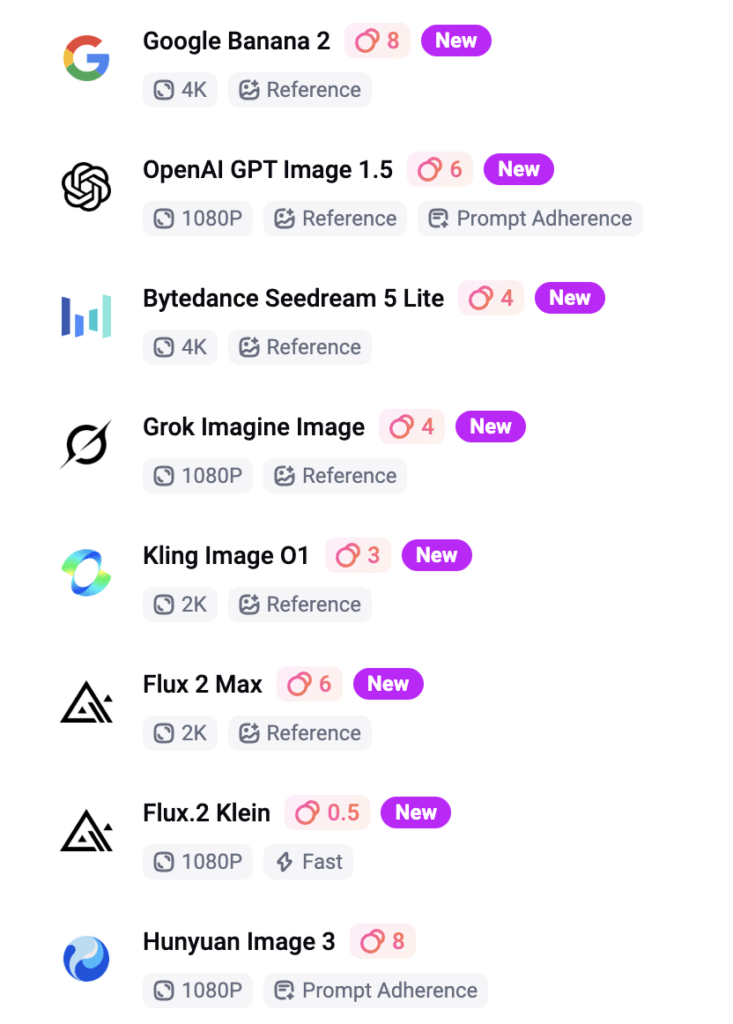
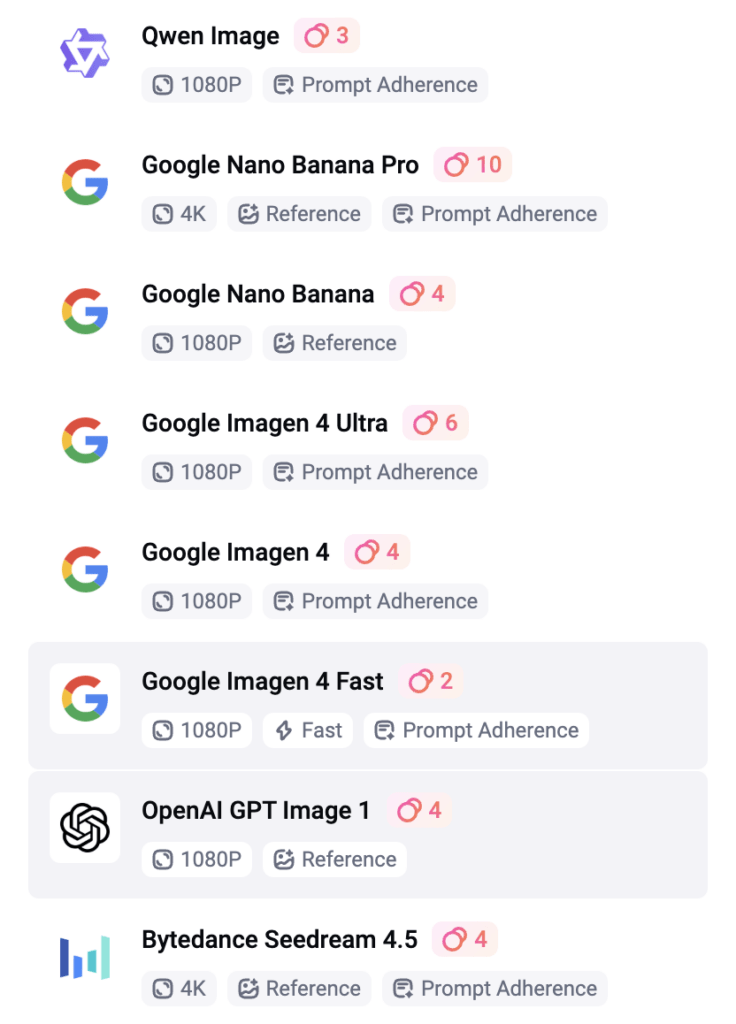
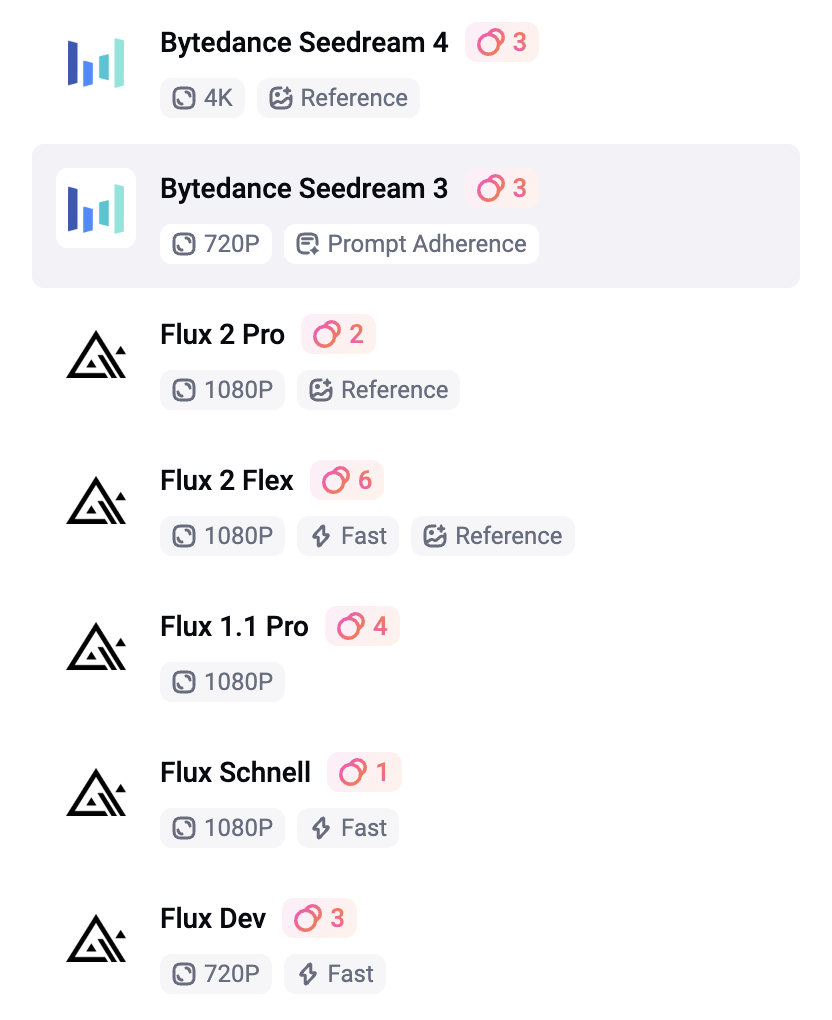
The Business plan was worth it for the added flexibility and fewer limitations, but it’s not something I rely on for everything. I still use external tools like ChatGPT and VideoExpress for image generation, then bring those assets into FlexClip for animation, editing, and overall structure. That’s partly because AI image generation can be unpredictable, and even at 0.5 to 10 credits per image depending on the model, the cost can add up quickly if you’re doing a lot of testing and iterations. It also includes smaller AI tools like background remover, image-to-illustration, image extender, outfit changer, and hairstyle changer, which are useful but not the main focus.
Where those AI tools do shine is when you want to get more creative with your slideshows. Features like AI Image to Image can turn visuals into line art or watercolor styles, which can add a unique look without much extra effort. Combined with some of FlexClip’s transitions and effects, it’s an easy way to create more stylized, visually interesting scenes without needing advanced design work.
What This Actually Means (Real Breakdown)
1. Kling vs Hailuo (Why They Came Out on Top for Me)
Kling and Hailuo ended up being my top performers to create video with AI — not just because of quality or pricing, but because they both support start and end frames. That feature alone makes a huge difference. Further down in the AI Tools section, I’ll show video examples of a mermaid to compare how these models perform and explain why they stood out as the most reliable options in my workflow.
With start/end frames:
- you control the beginning of the scene
- you control the end of the scene
- the AI fills in the motion between
Without it:
- motion becomes unpredictable
- transitions can feel random
- scenes don’t always connect properly
This is exactly why Kling AI stood out.
1a) Kling AI:
- smoother motion
- cleaner transitions
- more cinematic output
1b) Hailuo AI:
- more credits
- lower cost per generation
- works well for simpler animations
Another newer feature worth mentioning is Motion Control, which lets you take a still image and guide its movement using the motion of a reference video. That opens up a lot of creative potential, especially for more directed animation. For the kind of animation I’m focused on right now, I haven’t explored that enough yet to comment on it in depth, so I didn’t want to overstate it here.
There are also newer models out there, like Higgsfield, that many people consider even stronger in some cases. But for the purpose of this review, I could only compare what was actually available inside FlexClip at the time. I didn’t want to turn this into a comparison of tools FlexClip doesn’t currently offer.
Why I Didn’t Test Sora
Sora is being phased out, so it didn’t make sense to include it in a long-term workflow.
2. VideoExpress (Unlimited Basic Animations)
VideoExpress does include an editor, but it’s fairly minimal. You can make quick adjustments, but it doesn’t offer the kind of full workflow you’d expect from a more complete editing platform. You’re not getting strong transitions, polished effects, or much in the way of a built-in music workflow. Where it does make sense is for simple animation. It works well for subtle motion, quick outputs, and lightweight scenes where you don’t need a lot of control, making it somewhat comparable to Hailuo when you’re looking to create video with AI software.
The biggest advantage is that once you pay for the software, you’re not dealing with a credit system, which makes it much easier to experiment freely without worrying about usage limits. The tradeoff is control. VideoExpress doesn’t support start and end frames, so it’s less directed than tools like Kling or Hailuo. It can still handle simple scenes and low-motion animation, but if you need cleaner transitions, more predictability, or stronger character consistency, it starts to feel limited. That said, the unlimited generation model is a major advantage, and for the right kind of workflow, it can easily outweigh those drawbacks.
👉 Try VideoExpress AI
https://www.fantasyfusionai.com/go/videoexpress
3. FlexClip (The “All-in-One” Option)
FlexClip isn’t trying to be an AI-first generator. It leans into being a complete video creation tool, with AI features layered in to support the process rather than drive it entirely. That distinction matters, because it sets the expectation for how the platform is meant to be used. What it really brings together is animation, editing, templates, and overall structure, helping you assemble and refine content instead of generating everything from scratch. Because of that, it works best when you treat it as part of a full workflow rather than expecting it to handle everything on its own.
I did test FlexClip’s generative animation options (20 credits per generation – see diagram further below in AI Tools), and the results were mixed. A more complex mermaid-style clip (shown below, with versions successfully generated in Kling and Hailou) struggled inside FlexClip, taking a long time to queue before ultimately failing and refunding the credits. That’s not entirely surprising given how demanding that type of animation is, so I tried again with a simpler setup. Using my own images with defined start and end frames worked much better, producing a smoother transition that actually felt worth the ~20 credits per use.

Start Frame Image (Video Express)
Video rendered with FlexClip

End Frame Consistent Character (Video Express)
So while FlexClip absolutely can work to create video with AI, I’d look at it as a useful built-in option rather than the main reason to subscribe. The real value is still the larger workflow around it.
👉 Try FlexClip
https://www.fantasyfusionai.com/go/flexclipai
I also tried two prompt-based animations (image from VideoExpress) without an end frame, and the results were… memorable. The animations were funny in a very AI way. My guess is that the prompt needed more precision, but that also proves the point: for beginners experimenting with AI animation, that kind of unpredictability can get expensive fast.
Notice the extra finger?
Prompt:
Animate the Pixar-style young woman as if she is discovering a magical idea. She lifts one hand and creates a small swirling ball of warm glowing magic above her fingers, with soft sparkling particles drifting outward. Her expression brightens with excitement, her body shifts naturally, and her hair moves gently with the motion. Keep the same cozy studio background, same warm desk lamp lighting, same full-body framing, and same outfit. Motion should feel lively, charming, and polished. No camera movement, no background changes, no outfit changes, no dramatic relighting.
Sorry.. what? So funny.
Prompt:
Animate the Pixar-style young woman as if she is getting ready to head out the door. She grabs a jacket and purse in one smooth motion, turning slightly and taking a step as if leaving the room. Keep her movement lively and natural, with gentle hair sway, soft blinking, and a bright motivated expression. Change the background to a warm cozy entryway near the front door, with a coat rack, small table, and soft indoor lighting. Change her outfit to a casual polished look: fitted long-sleeve top, stylish jacket, slim pants or leggings, and ankle boots, while keeping the same character face, proportions, and Pixar-style design. Motion should feel smooth, active, and believable.
4. Canva (Still One of the Easiest Design Tools to Use)
Canva does include AI features, but that’s not the focus here. In this comparison, it makes more sense to look at it as a design and layout tool rather than an AI animation platform. Where Canva stands out is in branding, visual consistency, and ease of use. It’s one of the simplest platforms for creating polished graphics, clean layouts, and professional-looking branded content with minimal friction.
That said, it works differently than FlexClip. Canva is more design-focused than motion-focused, with fewer animation-driven templates, especially for slideshow-style content. Its animation tools are more limited, and it’s not really built around AI video workflows in the same way. So while Canva is a strong choice for visuals and branding, FlexClip makes more sense when the goal is creating more structured, animation-driven video content.
5. CapCut (Still One of the Strongest Editors Available)
CapCut does include AI features, but that’s not really the focus here either. In this comparison, it makes more sense to look at it as a video editor first, not an AI animation tool. Where it stands out is in the editing itself. It’s still one of the strongest options if you want control over your final video, especially with transitions, effects, masking, and more hands-on refinement.
That said, it works differently than FlexClip. CapCut is more manual from start to finish and doesn’t offer the same kind of structured, template-driven workflow for quickly building videos. That’s great if you like full control, but it also makes it less efficient for fast, template-based content. So while I wouldn’t position CapCut as an all-in-one AI video workflow tool like FlexClip, it’s still an excellent choice if your priority is polishing, refining, and building with more control.
👉 Try CapCut
https://www.fantasyfusionai.com/go/capcut
Simple Decision (This is What People Actually Want)
If your goal is:
- Best AI animation quality → Kling AI
- More credits, simpler animation → Hailuo AI
- Unlimited but basic animation→ VideoExpress AI
- All-in-one animation workflow → FlexClip
- Advanced editing → CapCut Pro
- Design + branding with some animation → Canva Pro
How This Fits into a Real Workflow
Here’s how this actually plays out in practice:
- ChatGPT / VideoExpress / FlexClip (Google Nano Banana) → Image creation
- VideoExpress/Hailou/Kling → Animation (depending on action involved)
- FlexClip → Structure, templates, fast builds
- CapCut Pro → Final polish (if needed)
- Canva Pro → Professional thumbnails for social media
AI Tools Inside FlexClip (With Cost Per Use)
FlexClip includes a wide range of AI tools across video, image, and audio, all built directly into the platform. As shown above, everything is organized into clear categories, making it easy to explore depending on your workflow. What stood out to me was just how much is actually packed into one place. I’m still exploring a lot of these tools, especially on the audio side, which I haven’t had much time to test yet but plan to dive into more in the future. It’s one of those platforms where the more you click around, the more features you end up discovering.
I tested a range of FlexClip’s AI image tools below, along with the credit cost shown for each one. Some tools aren’t pictured here, but this should give a good snapshot of how the feature set is priced in real use. From what I could see, anything over 2 credits seemed to fall into the more premium side of the AI tools, so my assumption is that you’d likely need to be on a paid plan to use those consistently. These tools are useful for quick fixes and creative experimentation, but they’re not something I’d treat as professional-grade editing replacements.
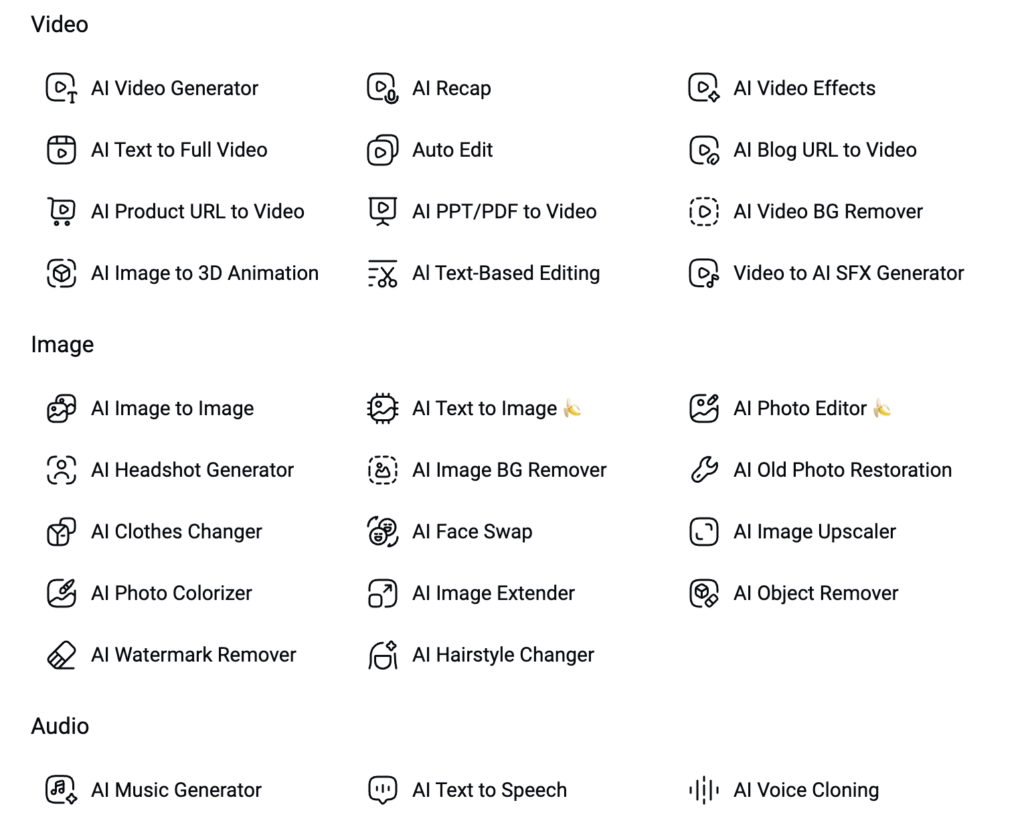
A screenshot of the AI tools available within FlexClip is shown above.
Text-to-Image Models
AI Photo Editor
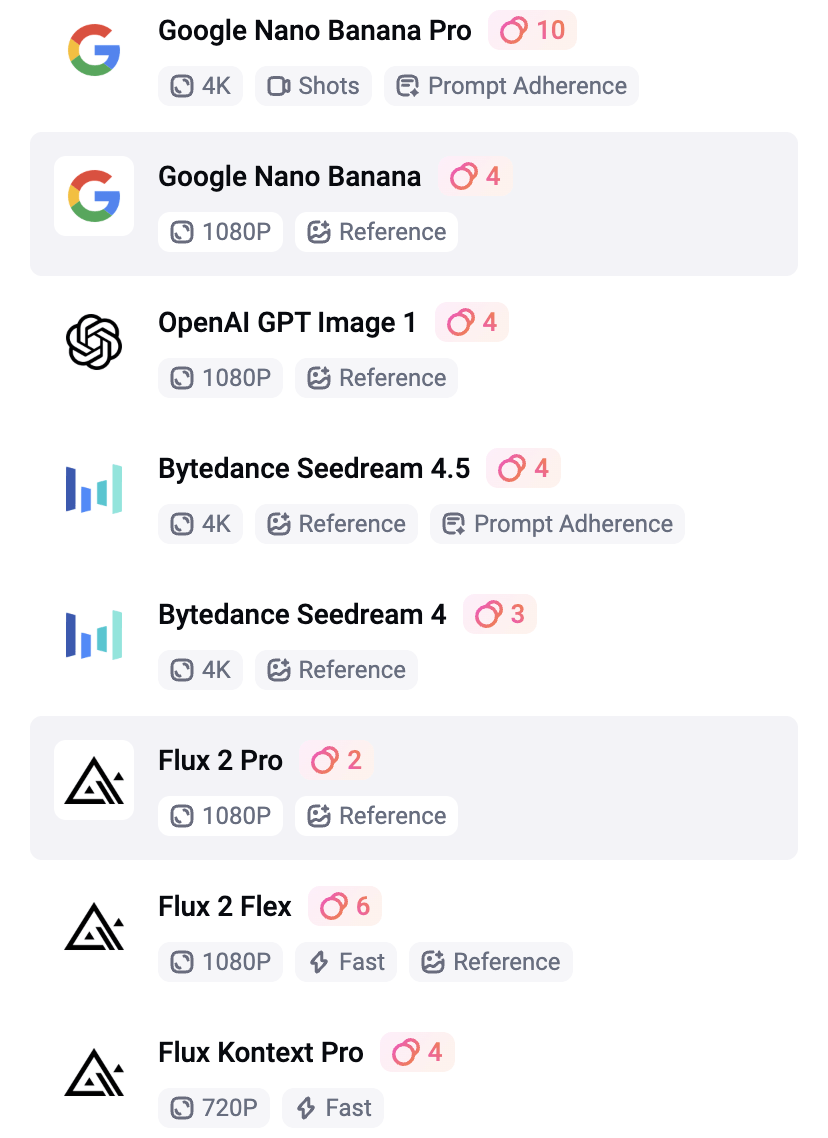
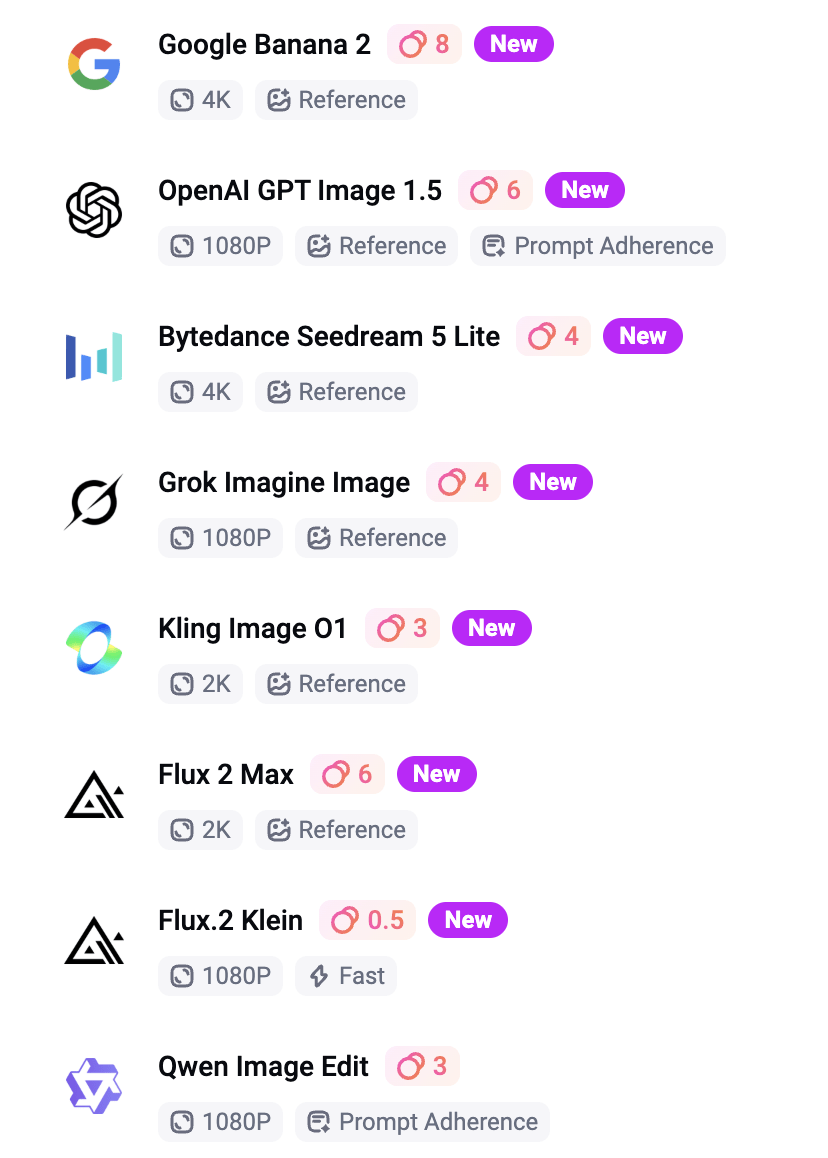
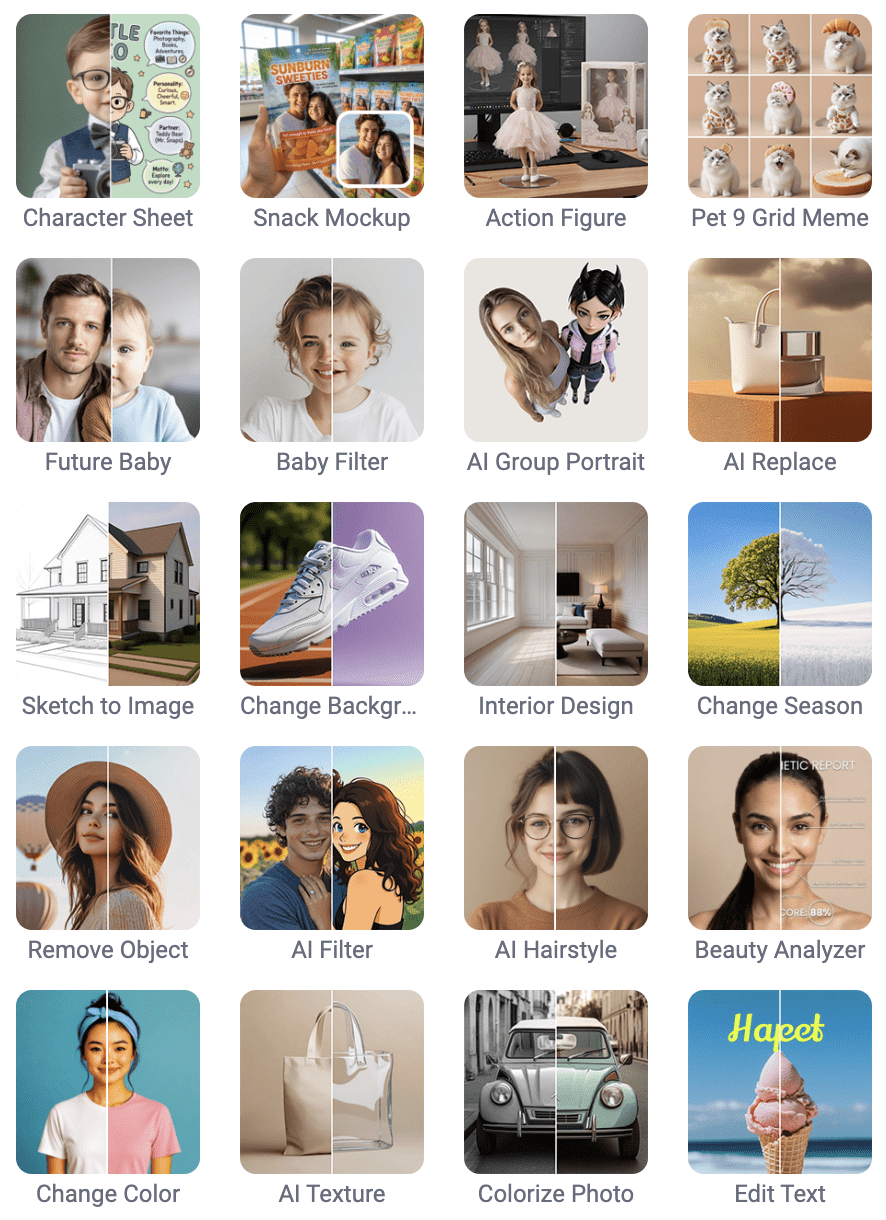
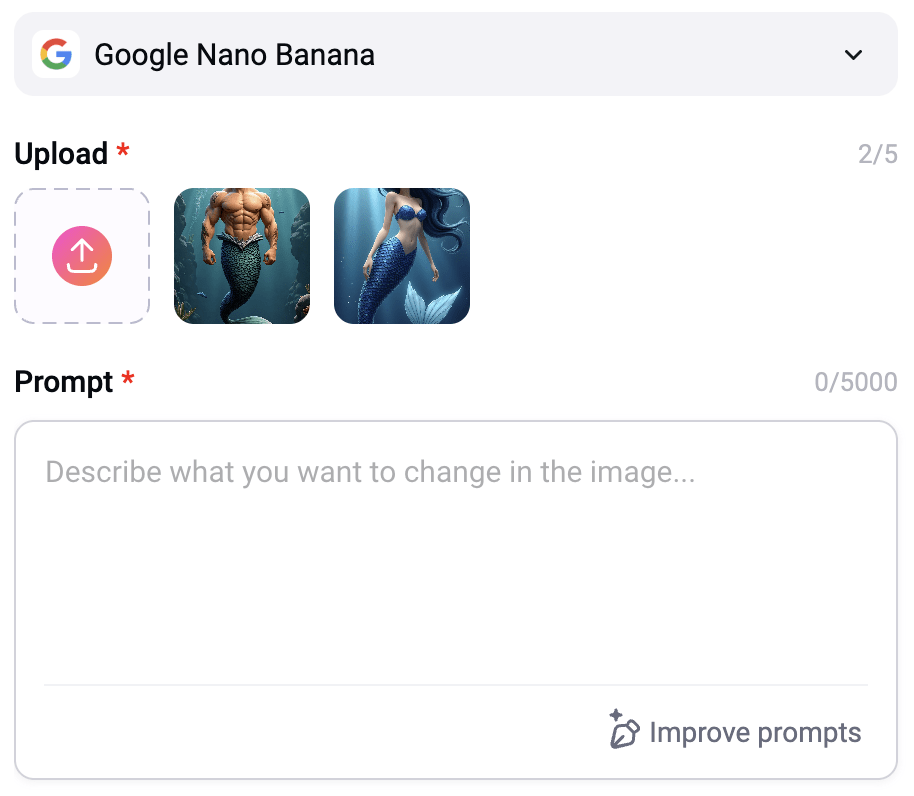
The AI Photo Editor was probably the biggest surprise for me. As shown above, the available models are listed on the left, with a wide range of effects on the right, and the prompt interface below. What really stood out was how efficient and intuitive the Nano Banana model felt. At just 4 credits per use, it allows you to upload and combine two images, which led to some of the best character consistency I’ve seen so far. Honestly, the results from this model completely blew me away. It’s one of those tools that immediately feels useful, and at the same time, it’s clear there’s still a lot more to explore within this part of the platform.
AI Image to Image, AI Restoration, AI Image Extender, AI Object Remover, AI Clothes Changer, and AI Hairstyle Changer

Original Image (ChatGPT)

Generated Scratched Image with ChatGPT (for RESTORATION)

Ghibli 1 (2 CR/use)

3D Cartoon 1 (4 CR/use)

3D Emoji (4 CR/use)
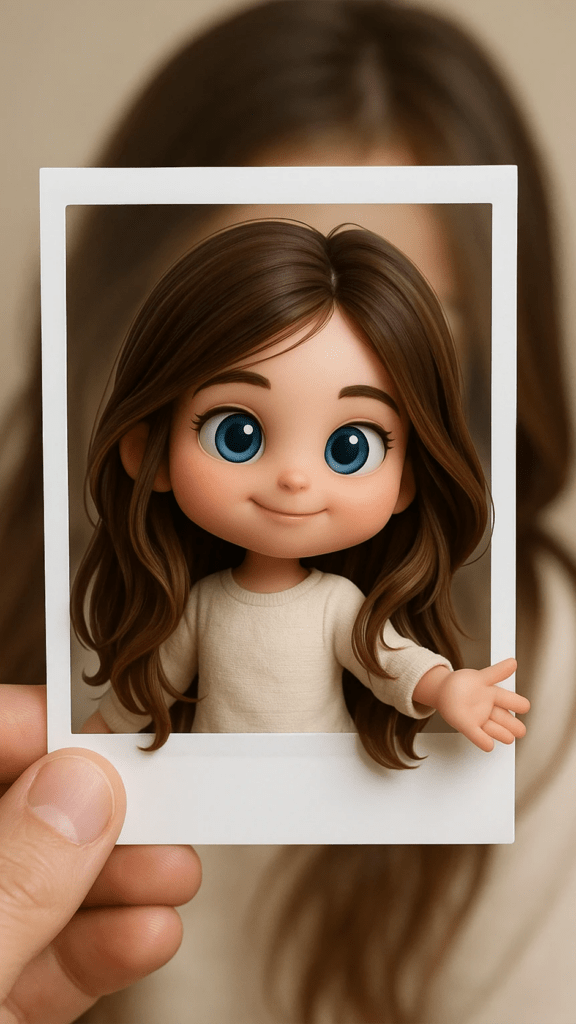
3D Polaroid (4 CR/use)

B&W Sketch (4 CR/use)

Crayon (4 CR/use)

Line Drawing (4 CR/use)

Picture Book 1 (4 CR/use)

Pixel Art (4 CR/use)

Watercolor 1 (4 CR/use)

Watercolor 2 (4 CR/use)

Watercolor 3 (4 CR/use)

RESTORATION – B&W (6 CR/use)

RESTORATION – Natural (6 CR/use)

RESTORATION – Pop Art (6 CR/use)

Image Extender (2 CR/use) Black strip?

Same Girl with Background Added to Image

Removing Book (5 CR/use) Results were smudged

Outfit Change (16 CR/use)

Hairstyle Change (4 CR/use)
Image-to-Video Models
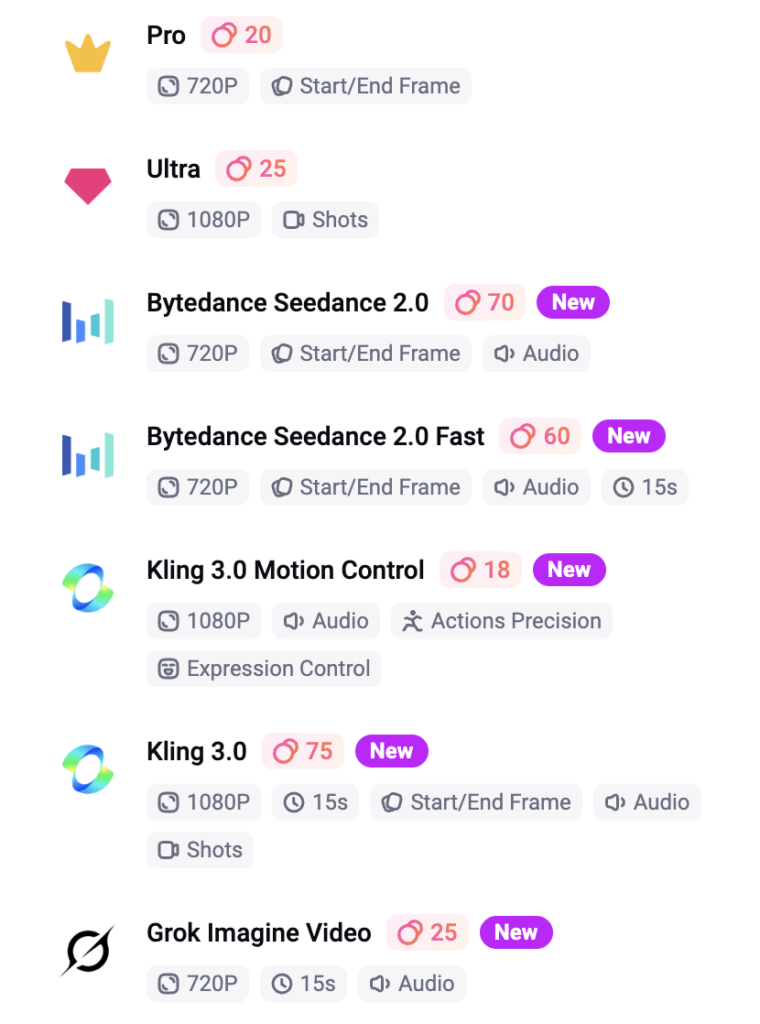
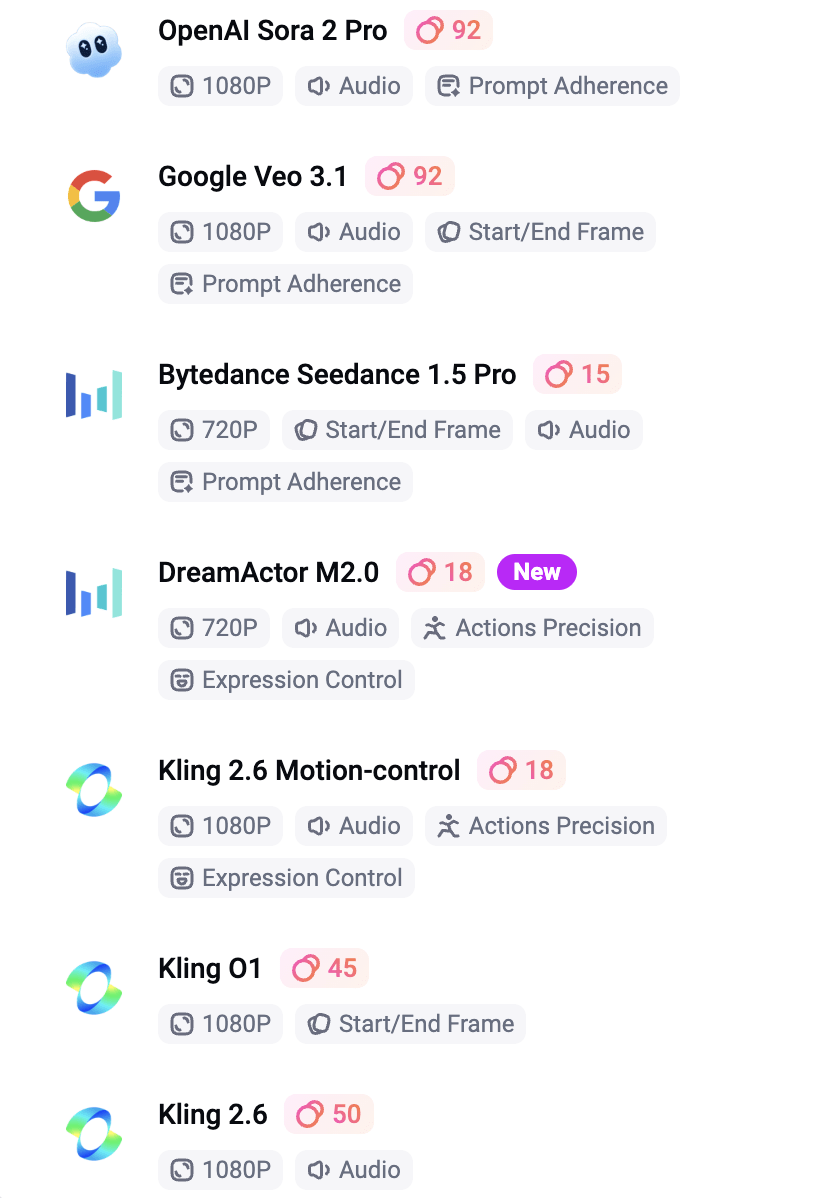
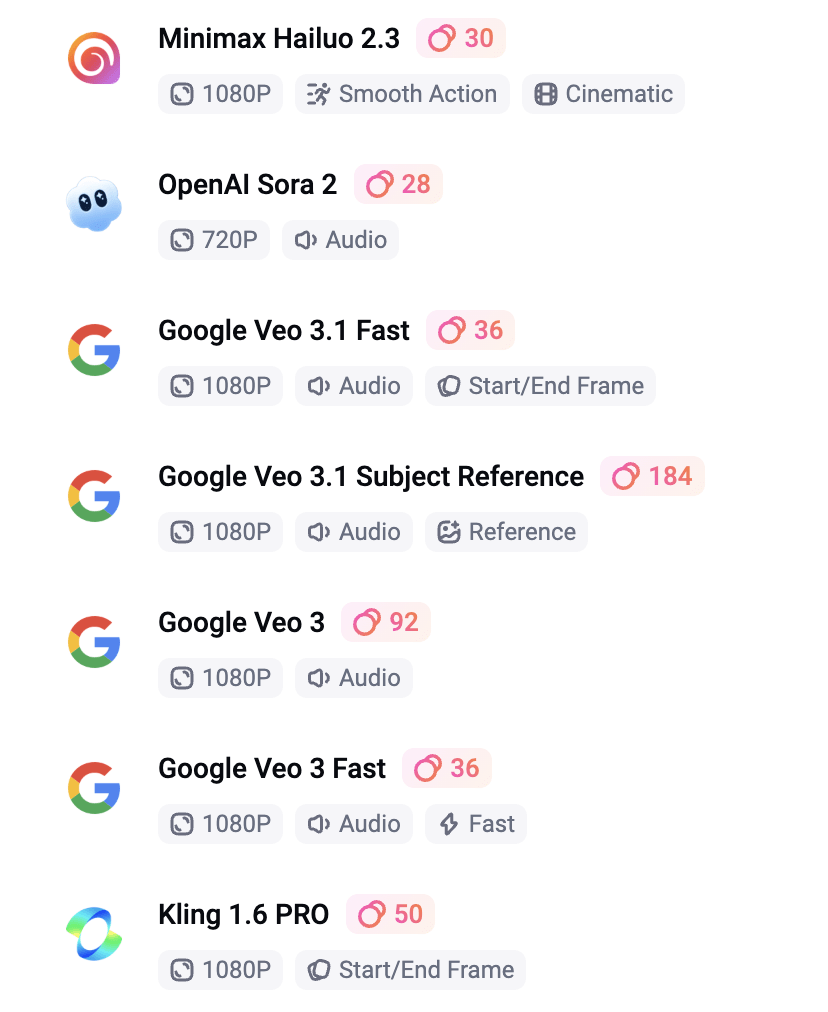
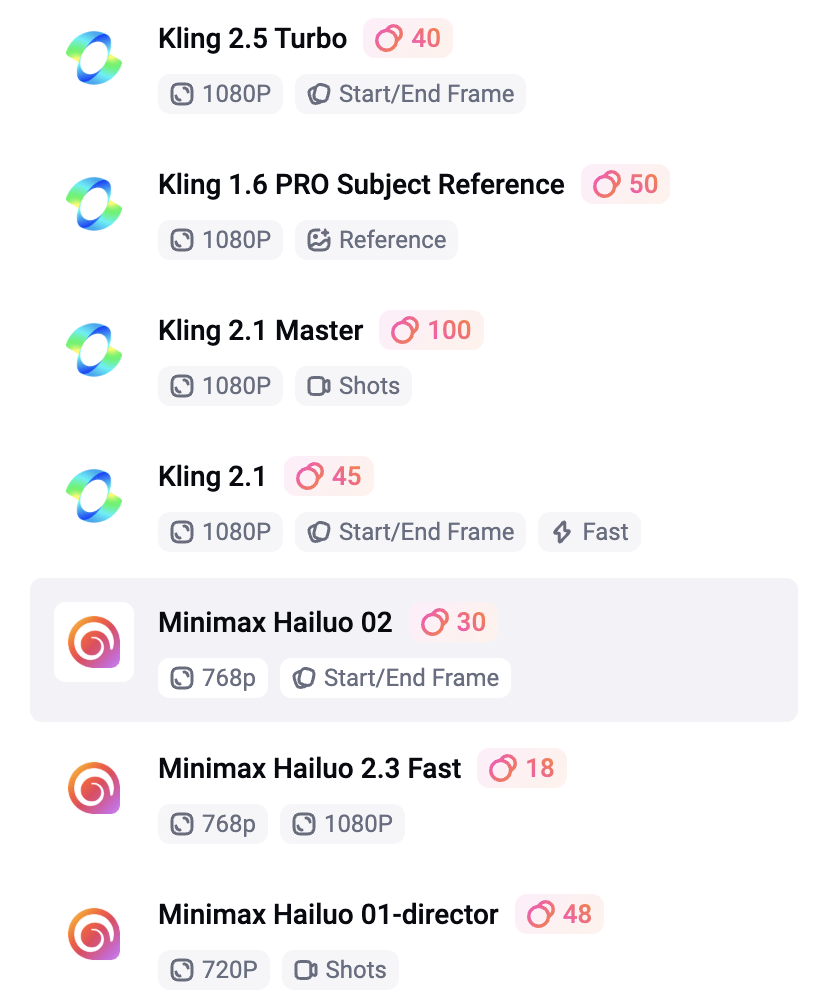
How I Tested the Models
I focused on models that:
- support start/end frames
- stay under ~50 credits per generation
- consistently complete without errors
Anything outside of that wasn’t practical for me for repeat use.
Kling 2.1
(Best Overall Cost & Performance)
Kling 2.1 was the strongest model overall in my testing. It was 45 credits per generation, supports start and end frames, and produced the most stable results. The biggest difference wasn’t just the visual quality, but how it handled motion. Transitions felt smoother, movement felt more intentional, and the scenes flowed in a way that looked more directed and polished. It didn’t feel like the AI was guessing its way through the clip — it felt like it actually understood the assignment.
Minimax Hailuo 02
(Lower Cost & Simple Animation)
Hailuo was the more affordable option at 30 credits per generation, and it also supports start and end frames. It worked reasonably well for simple animation and more subtle motion, so I can see why it would appeal to someone who wants more volume for less cost. That said, the output felt less refined than Kling. The transitions were more inconsistent, and you’d occasionally get awkward movement or slightly unnatural blending. For an extra 15 credits, I would go with Kling 2.1.
Some models queued for a long time and ultimately errored out on the more complex mermaid animation, including Google Veo, Seedance, and FlexClip’s default generator. FlexClip did produce some results under simpler conditions, but overall the performance was mixed. With beginner-level prompting, that kind of inconsistency can get costly quickly, even with credits being refunded.
That said, I haven’t done enough testing to confidently rule anything out yet, especially after discovering how strong some of the other tools can be. Now that I’ve had this breakthrough with Google Nano Banana, I’ll be going back to explore the other models more thoroughly and give them a fair shot before forming a final opinion.
Why I Still Use Image → Video to Create Video with AI (Even Without Focusing on Prompts)
Starting with an image, even one created outside of FlexClip, tends to produce more consistent and usable results in my workflow. It gives me full control over composition, lighting, and subject detail before animation begins, which helps avoid the unpredictability that often comes with generating everything from scratch.
It also makes the overall workflow more reliable, since you’re building on a solid visual foundation rather than relying entirely on AI interpretation. In practice, this means cleaner motion, fewer artifacts, and outputs that feel more intentional and polished, especially when using the image-to-video models shown above.
Since originally writing this, I’ve started testing FlexClip’s Nano Banana model more seriously for image generation. In some cases, it’s actually reduced how often I need to rely on external tools. It’s fast, consistent, and at 4 credits per generation, it’s one of the few tools inside FlexClip that feels both practical and scalable for regular use.
Best AI Image to Video Prompts
When converting a still image to video, generic descriptions can cause the AI generator to warp your original artwork. To get clean, cinematic results, you need to prompt for camera lenses, lighting shifts, and targeted environmental movement. Here are three high-performing prompt formulas that keep your core elements perfectly intact while adding professional animation:
- The Cinematic Macro Lens Pan: Cinematic slow tracking shot, 35mm film grain, shallow depth of field. Natural, organic movement as the camera passes across the frame. Ambient light shift with subtle dust motes floating in the background beams.
- The Atmospheric Volumetric Flow: Slow-motion atmospheric simulation. Wisps of heavy mist and volumetric smoke gently curling through the dark space. Soft, pulsing illumination from hidden light sources reflecting off detailed textures.
- The Hyper-Realistic Environmental Loop: Continuous ambient weather overlay. Soft, intricate snow drifting naturally downward in the extreme foreground, gentle parallax effect, trees swaying slightly in a distant breeze, seamless looping flow.
Pro-Tip: Focus your text prompts on how the camera captures the scene rather than commanding massive character actions. Prompting for lens behavior (like “shallow depth of field” or “35mm tracking”) forces the AI generator to treat your static image like a live movie set, resulting in beautiful, distortion-free animation.
AI Video Effects
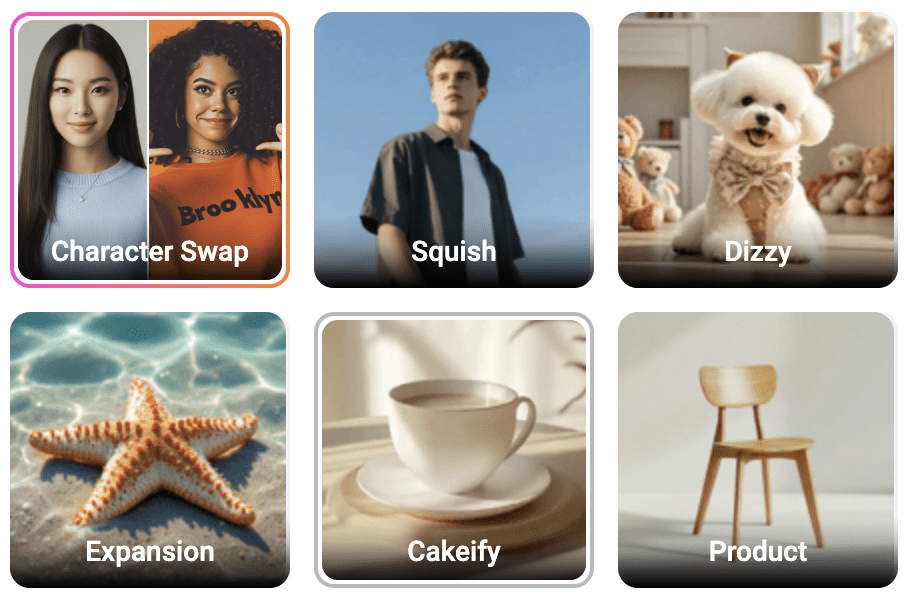
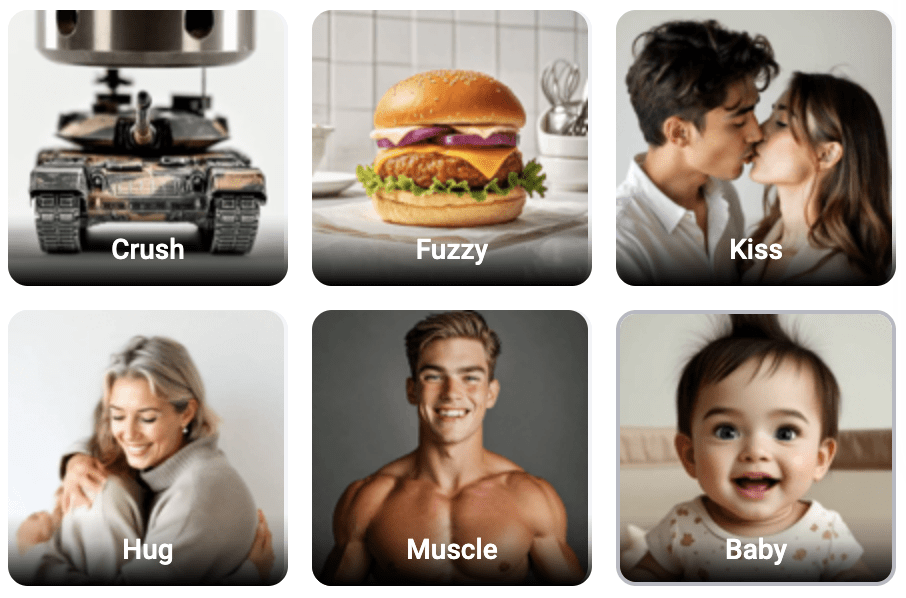
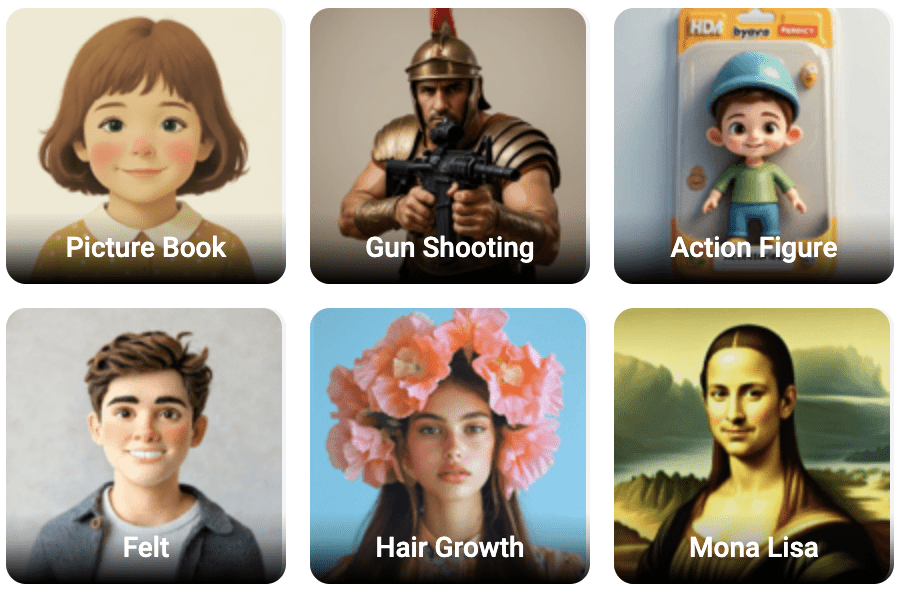
I also briefly tested some of the AI Video Effects, including the “Kiss” effect. The effects themselves look really cool and definitely have potential, but the results were inconsistent compared to a more controlled workflow. I actually had better results creating a single image with Nano Banana and then animating it in VideoExpress than I did trying to animate two separate images directly inside FlexClip with the Kiss effect. Because of that, I didn’t spend much time exploring those effects further for this review, but it’s something I’ll come back to test more as the models continue to improve.
Below are screenshots of the many Video Effects offered within FlexClip:

Understanding Where Credits Actually Matter
One thing I noticed pretty quickly is that not everything in FlexClip uses credits. The AI generation and image-based tools do, but templates, editing, transitions, and most of the structure-building side of the platform feel much more open to use, which changes how I think FlexClip makes the most sense in a real workflow. Instead of forcing everything through its AI features, I think it works better to use those paid tools where they actually help, especially since smaller jobs like adjusting an image for a slideshow, extending it slightly for better framing, restoring an older image, or testing lighter creative tools. They are inexpensive enough that they don’t feel like a big risk.
That also made some of the simpler tools more fun to experiment with than I expected, because you could try things without feeling like you were draining credits too fast. If you’re doing heavier AI animation work, though, it may still be smarter to subscribe directly to a dedicated tool like Kling AI and then use FlexClip for everything around it, including templates, transitions, editing, and overall structure. FlexClip also has AI audio tools, but for the purpose of this post I stayed focused mostly on the image and animation side of the workflow.
How I Avoided Wasting Credits
For this reveiew I didn’t generate images inside FlexClip. Instead, I used ChatGPT and VideoExpress first so I could refine the visuals before spending credits to create video with AI models. That gave me a lot more control upfront. I could fix the look I wanted first, avoid burning through repeated generations, and save FlexClip’s credits for the parts of the workflow where they actually mattered more. After experimenting with Nano Banana I will definitely be using that model more (at 4 CR/use).
Editor and Templates (The Real Value)
This is where FlexClip surprised me.
This template was provided by FlexClip, but I customized it myself by adjusting the text and spacing and adding one of FlexClip’s logo animations at the end to make it feel more like my own. That process is a good example of where FlexClip actually stood out for me. The interface is clean, easy to use, and clearly built for fast, structured video creation. The templates are strong, the transitions are good, and it feels beginner-friendly in a way that makes it easy to build something polished without a lot of friction.
Where FlexClip works best is in quicker, template-based projects where speed and structure matter more than detailed manual editing. The biggest downside is precision. It doesn’t have the spacing tools the way Canva does, so if you’re used to that kind of layout control, you’ll notice the difference right away. That was probably the only real usability issue that stood out to me.
As for whether I’d use it over CapCut, in some cases, yes. I’m already very comfortable with CapCut and know my way around its interface, effects, transitions, and masking tools, so it’s still the more natural choice for detailed editing. But FlexClip surprised me enough that I’d definitely experiment with it more for certain projects, especially when I want faster builds, structured content, or something that doesn’t need as much manual refinement. It’s not a full CapCut replacement for me, but for the right kind of workflow, I could absolutely see myself using it more going forward.
My Actual Workflow:
- Generate image (ChatGPT / VideoExpress / Nano Banana)
- Import into FlexClip if needed
- Animate using Kling or VideoExpress
- Export clips
- Final edit (FlexClip or CapCut)
Final Thoughts (Honest Verdict)
FlexClip isn’t positioned as an AI-first tool, and that’s actually part of its strength. Instead of focusing purely on generation, it’s built to help you create video with AI as part of a broader, easy-to-use workflow. The platform combines animation, editing, and templates, with AI features layered in to support the process rather than define it.
That distinction matters. The real value isn’t just being able to generate something with AI, but being able to combine AI-assisted features, templates, editing, animation, and structure in one place. That’s what makes it genuinely useful in practice.
Not because it replaces dedicated AI animation tools like Kling, and not because it competes with stronger editors like CapCut in every area, but because it fills a very practical middle ground. If your workflow involves slideshows, structured video content, light-to-moderate AI use, and fast template-based editing, FlexClip fits in really well. It’s not trying to be everything, and it doesn’t need to be. It’s a streamlined animation platform with built-in AI features, and for the right kinds of projects, it’s something I can absolutely see myself continuing to use.
Even after publishing this, I’m still finding new tools inside FlexClip that shift how useful it is in a real workflow. Google Nano Banana is a good example of that. It’s one of those features that doesn’t stand out immediately, but once you use it, it can genuinely change how you approach content creation on the platform.
More AI Image and Animation Tutorials
If you want to go deeper into AI image creation and animation, these guides expand on the techniques used in this article:
How to Craft Picture Prompts That Create Powerful AI Images
Learn how to structure prompts that generate cinematic AI art, detailed characters, and immersive fantasy environments.
How to Animate AI Images: Step-by-Step Beginner Guide
Learn how to turn static images into cinematic animated scenes using modern AI animation tools.
How Generative AI Works: The Powerful Shift in AI Image Creation
Understand how AI models interpret prompts and transform text into visual images.
Best AI Writing Software for Creative Writing & Fiction (2026 Guide)
Explore how AI writing tools can help spark character ideas and expand your fantasy stories.
How to Create Consistent AI Characters for Animation (2026 Workflow)
Discover practical techniques for building recurring AI characters that stay visually consistent across storytelling, animation, and cinematic scenes.
These guides walk through the creative side of building worlds, crafting prompts, and transforming AI images into cinematic visual stories.
Frequently Asked Questions About FlexClip and AI Video Creation
Q: So, what is the best AI video generator right now?
A: Based on my testing with available models, Kling 2.1 is one of the best AI video generators available inside FlexClip. It offers the most consistent motion and the best transitions, especially when using start/end frames.
Q: What is the easiest way to create video with AI?
A: The easiest way to create video with AI is to start with a completed image, then animate it using a tool like FlexClip. This approach gives you more control and reduces failed generations.
Q: Which AI video model is best in FlexClip?
A: Kling 2.1 produced the best results overall. Hailuo is a more affordable option, but the motion and transitions are less consistent.
Q: Is FlexClip worth it?
A: Yes, but not as a standalone AI generator. It works best as a video creation platform with AI features, especially when combined with external tools for image generation.
Q: How do you avoid wasting credits in AI video tools?
A: Generate and refine images outside the platform first, then use AI tools only for animation. Avoid repeated generations and expensive models unless necessary.
See the project in action on:
Ready to level up your picture prompts and writing with a little AI magic? Visit our homepage to explore tools, tips, and inspiration designed to help storytellers like you bring their worlds to life.


Leave a Reply